•
PROJECTORS
• FILTERS
SWATCHBOOK
• ELECTRIC
POWER CALCULATOR
•
• VIDEO
THROW DISTANCE
•
TEST
CARDS AND VIDEO SIZING
•
SOFT EDGE
•
• ELECTRIC
PLUG TYPE • DOWNLOAD •
ABOUT
LIGHTOOL •
• PROJECTORS •
Select among 60 usual
theater projectors with the pop-menu to find information like :
- dimension (height, width, depth)
- weight
- power supply
- minimum and maximum beam angle
You
can then change height (distance) between 0 and 40 meters to know the
light size incidence. Minimum and maximum light diameters will be reported at the
bottom of this window. Loaded by default, the
height is 8.50 meters. It is also possible to manualy change beam angles to
find a specific value.
 |
With
My
Bank option, you can store your own projector or device.
Select one of them to calculate and see the incidence.
 |
• FILTERS
SWATCHBOOK •
Make your choice among
these three swatchbooks with the vertical slider or the number boxes
and select a filter. The reference, the name,
the
percentage of transmited light (Y factor) and a RVB equivalence are now
visible.
LEE Filters is
classified
digitally, ROSCO
is in designer
mode, and
GAM Color is in both modes.
• ELECTRIC
POWER CALCULATOR •
It's easy to calculate
the power consumption of your project or to adapt it... Select into these power
classes, the projector power amount with number boxes. Different voltages are
possible to set (from 110 V to 240 V), the result
will calculate the total power supply and the needed
intensity.
• VIDEO
CALCULATOR •
To select the best video
device you need
some factors and datas.
Lens ratio and the
distance will
define
the image size. The native matrix resolution will affect the
quality but the
distance between the audience and the
screen is
also really important.
From the "Tool"
menu, select "Video".
To calculate with
Lightool, you first need this basic information about your device :
• Lenses ratio (F:1) (3)
• Native resolution (6).
The following
information
will depend on your project or your installation. You will probably
need to know
one of them...
• Projection distance (5) : 1 to 100
meters.
• Distance
between image and audience (8) : 1 to 100 meters.
Now you can see the
projection size (4) changing according to the distance
(5) and the actual lens ratio (1). Information on the pixel
width and
the ideal brightness (7) required for the screen
size will
change at the same
time.
The audience/image distance shows
if pixels can be
visible by the little auto-scale window (9) and an alert message (12). You can
read your movie file (or picture file) and have a real time render of
your
focus (supported
files :
.mov .avi .mpeg .jpg .gif .pict).
A 3D
render window (23) is made to have a
360° view from x, y and z axes.
Click on it to move the render. You can also zoom (17) and move the
window on x and y
axes (24). On top of that,
you have a pop-up menu to quickly access different views (18).
It"s
also possible to
disable the video screen render on the 3D window with the Source mode.
You can do the same with the Audience and the Beam render.
• (2) = Direct access to maxi,
mini and middle ratio size
• (22) = Enable/disable for Soft
Edge calculator.
Note
: The
pixel size is always calculated from the audience view
because it's finally the most important thing !

The storage board
(13) can load 50 different
video presets
:
• device name
• maxi lens ratio (ex
: 0.8 ou 1.2) (3)
• mini lens ratio (ex : 4 ou 5.5) (3)
• brightness
• resolution (6)
• contrast ratio
The "Store"
(14) fonction records actual
values of the selected line, but only for F max,
F
min and
Resolution.
The
"Edit
mode" (16) switches the board to one
cell storage, used to
insert name, brightness and contrast ratio and also to modify
a specific value. The "Clear"
(15) button
deletes the current selection, that can be a line or a cell according
to the
"EDIT MODE".
When you select a
line on the board (Edit mode OFF), the device values are immediately
loaded.
It's possible to compare, in one set up, several devices
and choose whitch one you need...
Few informations about
resolution :
| RESOLUTION |
RATIO |
VIDEO |
COMPUTER |
| 160
x 120 |
4:3 |
(1.33) |
|
QQVGA |
| 320
x 200 |
16:10 |
(1.6) |
|
CGA |
| 320
x 240 |
4:3 |
(1.33) |
|
QVGA |
| 640
x 480 |
4:3 |
(1.33) |
EDTV
(480p) |
VGA |
| 720
x 348 |
4:3 |
(1.33) |
|
Hercules |
| 720
x 480 |
3:2 |
(1.5) |
DV-NTSC |
|
| 720
x 576 |
5:4 |
(1.25) |
DV-PAL
/ EDTV (576p) |
|
| 800
x 600 |
4:3 |
(1.33) |
|
SVGA |
| 854
x 480 |
16:9 |
(1.77) |
|
WVGA |
| 960
x 528 |
20:11 |
(1.77) |
HR |
|
| 960
x 720 |
4:3 |
(1.33) |
DVCPRO-HD
(720p) |
|
| 964
x 544 |
16/9 |
(1.77) |
|
WSVGA |
| 1024
x 768 |
4:3 |
(1.33) |
|
XGA |
| 1280
x 720 |
16:9 |
(1.77) |
HDTV
/ HDV / AVCHD (720p) |
WXGA-H |
| 1280
x 800 |
16:10 |
(1.6) |
|
WXGA-H+ |
| 1280
x 1024 |
5:4 |
(1.25) |
|
SXGA |
| 1280
x 1080 |
32:27 |
(1.18) |
DVCPRO-HD
(1080i) |
|
| 1366
x 768 |
16:9 |
(1.77) |
|
WXGA |
| 1440
x 900 |
16:10 |
(1.6) |
|
WXGA+ |
| 1440
x 1050 |
4:3 |
(1.33) |
|
SXGA+ |
| 1440
x 1080 |
4:3 |
(1.33) |
DVCPRO-HD
/ HDTV / HDV / AVCHD (1080i) |
|
| 1600
x 1024 |
26:16 |
(1.56) |
|
WSXGA |
| 1680
x 1050 |
16:10 |
(1.6) |
|
WSXGA+ |
| 1600
x 1200 |
4:3 |
(1.33) |
|
UXGA |
| 1920
x 1080 |
16:9 |
(1.77) |
HD
/ HDTV / AVCHD (1080i) |
WUXGA |
| 1920
x 1200 |
16:10 |
(1.6) |
|
WUXGA+ |
| 2048
x 1080 |
|
(1.89) |
2K
|
|
| 2048
x 1536 |
4:3 |
(1.33) |
|
QXGA |
| 2560
x 1600 |
16:10 |
(1.6) |
|
WQXGA |
| 2560
x 2048 |
5:4 |
(1.25) |
|
QSXGA |
| 4096
x 2160 |
|
(1.89) |
4K
|
|
• SOFT
EDGE CALCULATOR
•
From the main Video window, click
on "Soft
Edge" (22).
A special Soft Edge window is created
and the render is now on "mesh" mode to see the 2 images overlap. The
entraxe distance between 2 projector can change from 1 to 20 m. Each
parameter have a specific color and a double value : in meter and in
pixel.
• Yellow
: Total size for 2 screens
•
Blue
and Green
: Height and width for 1 screen
•
Red
: Overlap size
•
White
: No lap size

• TEST-CARDS
AND VIDEO SIZING
•
From the "Tool"
menu,
select "Test
cards".
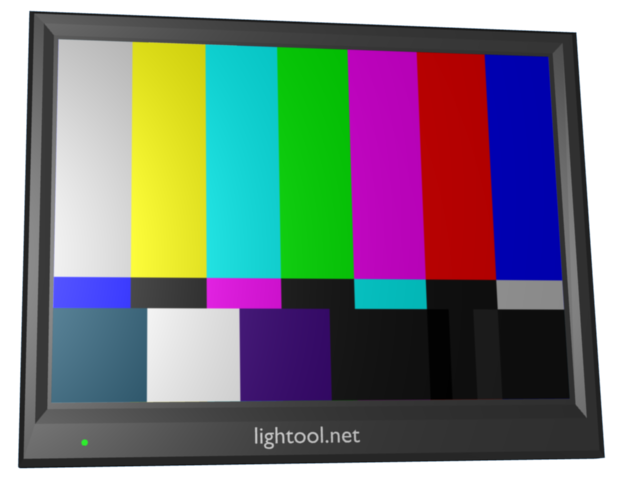
To best calibrate
and
focus your videoprojector you have
a media file player which supports the same files as above.
It's a simple loop player without the basic controls that
you find in other real-time software. The goal is to test and
compare
different sizes and resolutions with the pop-up menu. Select "Active
window" (5) to create the Lightool
window.
Different video size and resolution are shown.
When the "Full
screen"(6) is enable,
if it is active on the main computer screen, use "ALT-F". A selector gives you the
actual resolution of your display (or projector) and of your main
computer screen.
Click to download test-cards pictures.
From the "Tool"
menu, select "Plugs & Flags".
Information on local electric plugs, voltage and frequency is available
from a list of 198 countries.

•
DOWNLOAD
•
Some options are usefull on Lightool 3.0.1 only with autorised licence.
|
Lightool 3.0.1
- free - |
Lightool 3.0.1 autorised
- 15.00 € - |
| Projector |
• |
• |
| My Bank |
|
• |
| Filters swatchbook |
• |
• |
| Electric power calculator |
• |
• |
| Electric plug type |
• |
• |
| Video throw distance |
|
• |
| Test card and video sizing |
|
• |
| Soft Edge calculator |
|
• |
Purchase a licence on Toys For Theater
To authorise and have a technical support : lightool@toys-for-theater.com

•
About
LIGHTOOL
•
This project has
been developed step by step from
my own experience and needs in the course of my work.
Developed with Max/MSP/Jitter, and some few pictures
with Blender in
order to help in adapting
(or understanding) projection problems with light and video. Available for Mac OS X
(PPC and Intel)
Copyright
©
2007-2010 www.lightool.net